

Open vs password-protected
In short: an Open gallery opens for anyone with the link. A gallery With password asks for a 6-digit password first. Switch it in the Access group of the gallery.
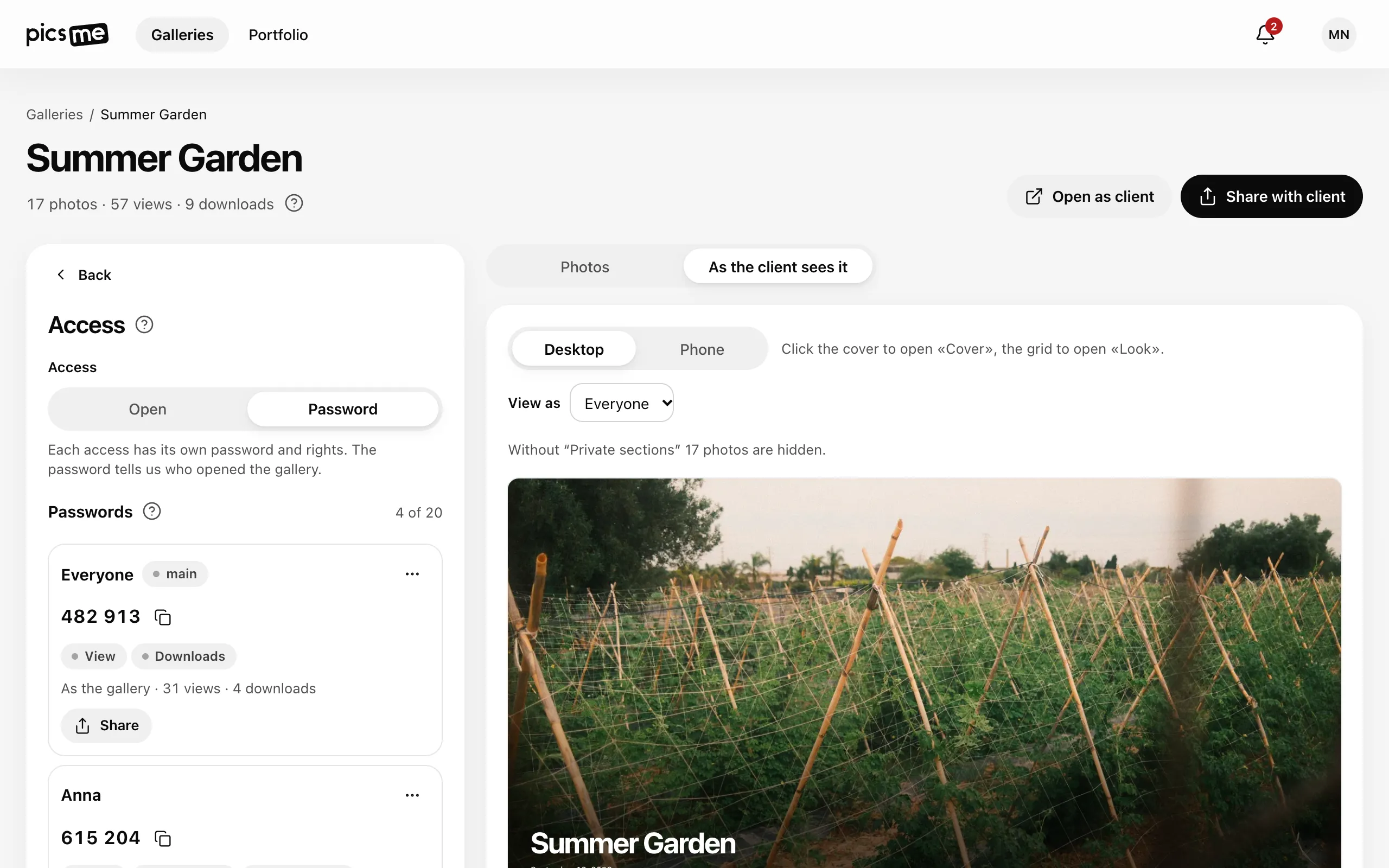
Choose the mode
Section titled “Choose the mode”- Open the gallery and go to the Access group.
- Under Access, pick Open or Password. It saves at once.
- With Password, the gallery password is the access marked main in the list below. Copy it with Copy password or send it with Share.
- Open → Password. A new gallery password is generated and saved at once. Send it to the client.
- Password → Open. The gallery password stops working, the gallery opens by the link. Participant passwords stay and become participant codes.
An open gallery opens for anyone who knows or guesses its address. With a simple address like
anna.picsme.app/wedding, the Address field warns you: set a password for anything private. See
Gallery address.
Change the password
Section titled “Change the password”- In Access, tap the ⋯ button on the main access.
- Tap Generate a new password next to the password, or type 6 digits yourself.
- Tap Save and send the new password to the client again.
The old password stops working at once; whoever opened the gallery with it has to enter the new one. Other accesses are not affected.
What the link preview shows
Section titled “What the link preview shows”In messengers an open gallery shows its title, your name and the cover. A gallery with a password shows only “Protected gallery” and your name — no cover and no title. See Sharing a gallery.
If it didn’t work
Section titled “If it didn’t work”- “This gallery already has this password”. Every access needs its own password — generate another one.
- The client says the gallery is unavailable. Check the dates in Access until.