

Export selection to Lightroom, Capture One, CSV
In short: in the Selection group pick whose selection you need, then tap For Lightroom, For Capture One or CSV. Lightroom and Capture One get the file names without extensions, so the filter finds your RAW files too.
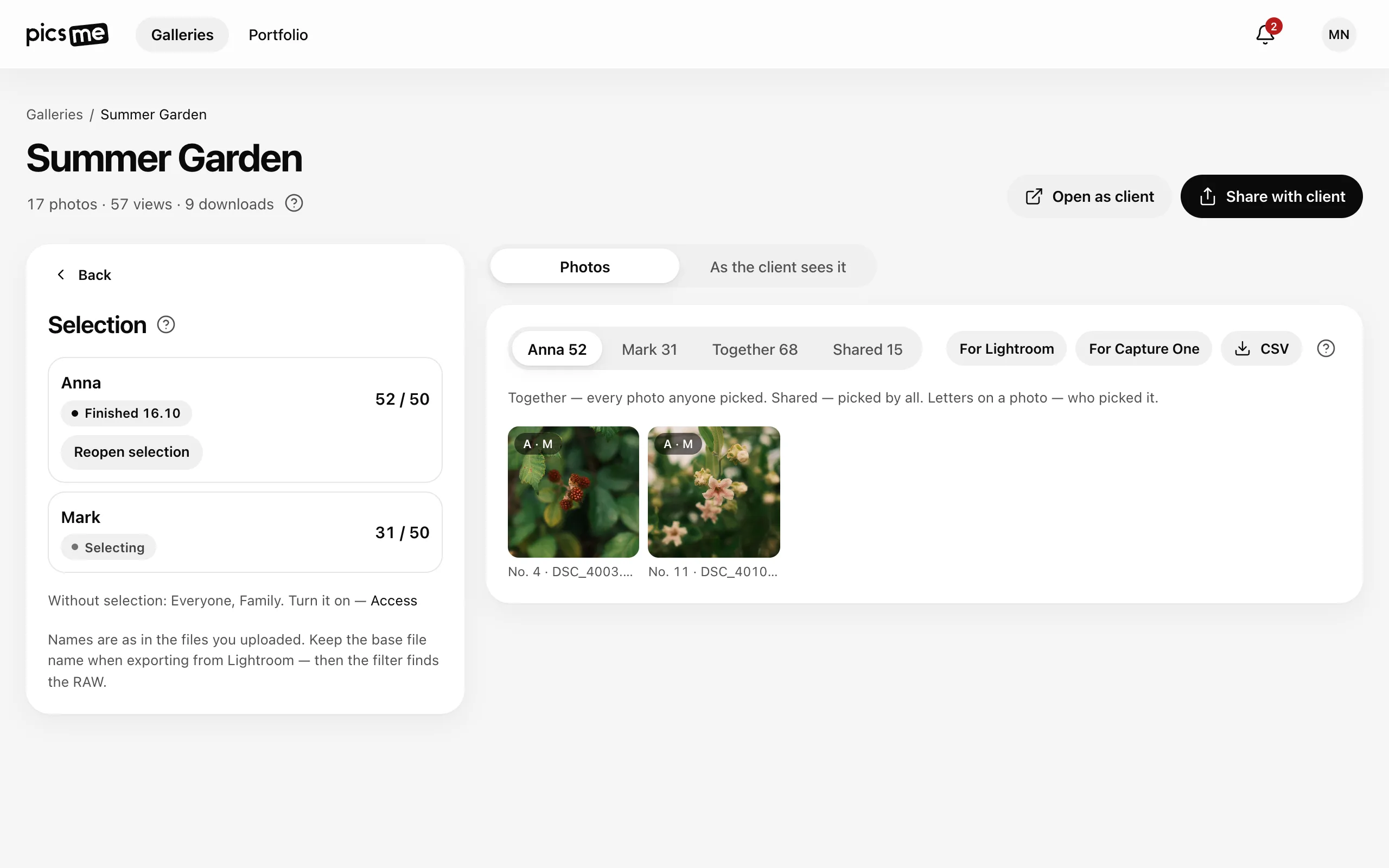
Export
Section titled “Export”- Open the gallery and the Selection group.
- In the preview pick a person — or Together / Shared when several people picked.
- Tap the format you need:
- For Lightroom — copies the names separated by commas;
- For Capture One — copies the names separated by spaces;
- CSV — downloads a table.
In Lightroom
Section titled “In Lightroom”- Open the shoot in Library.
- Open the filter: Library › Filter › Text and pick Contains.
- Paste the names. Only the selected photos stay — mark them with a flag or a colour label.
In Capture One, paste the copied names into the search by file name.
What’s in the CSV
Section titled “What’s in the CSV”One row per photo, in gallery order: number (the photo number in the gallery), original_name, section, access
(who picked it; several names separated by ; ). It opens in Excel, Numbers or Google Sheets.
Together and Shared
Section titled “Together and Shared”- Together — every photo anyone picked.
- Shared — only the photos everyone picked.
They appear when at least two people have hearts.
If it didn’t work
Section titled “If it didn’t work”- The filter finds nothing. The names come from the files you uploaded. If you exported JPEGs from Lightroom with new names, the filter can’t find the RAW — keep the base file name when exporting.
- The client’s numbers differ from the CSV. With private sections, a person without that right sees their own numbering. Go by the file name.
- “Couldn’t copy”. The names are shown below — select and copy them by hand.