

Opening your gallery and entering the password
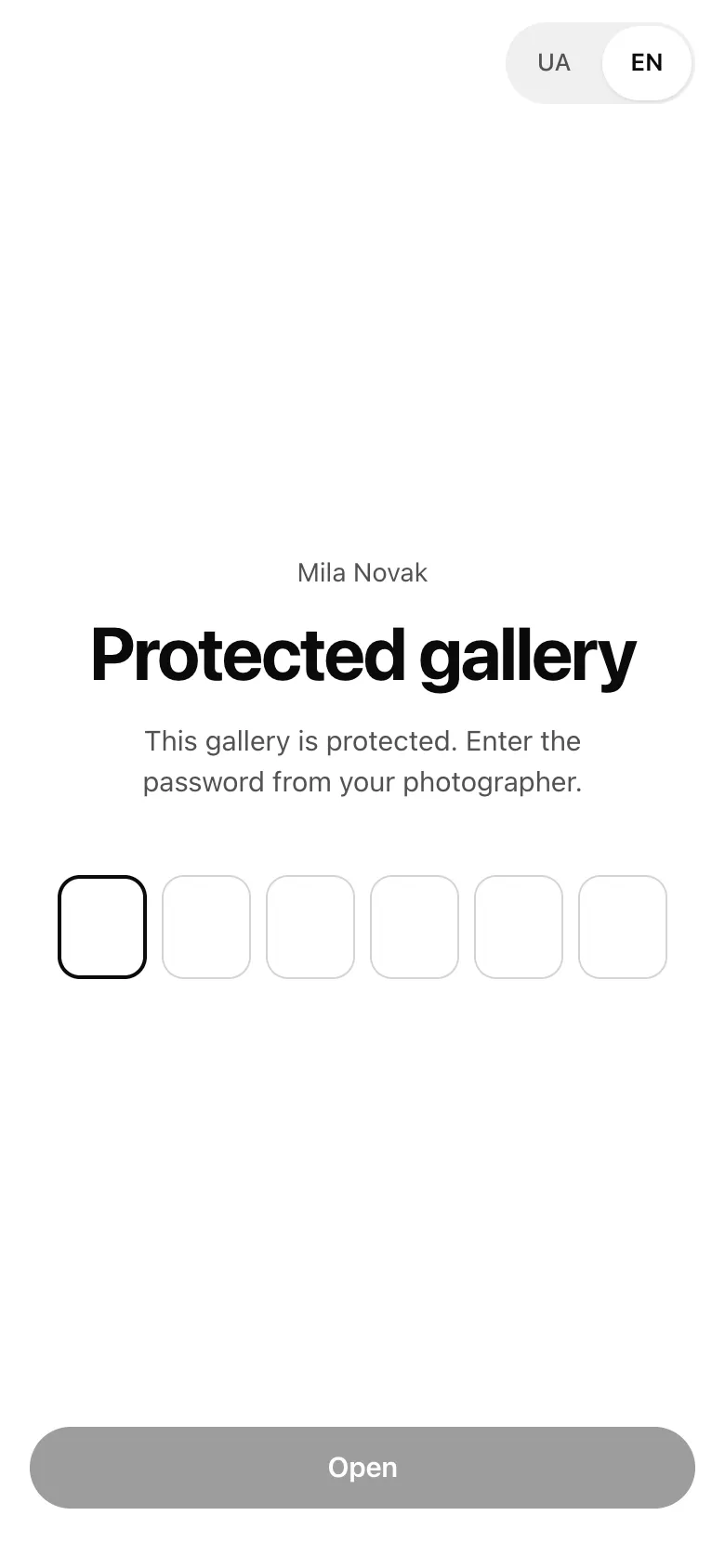
In short: open the link from your photographer. If the gallery asks for a password, type the 6-digit password they sent you and tap Open. No sign-up, no email.
Open the gallery
Section titled “Open the gallery”- Tap the link your photographer sent you. On a phone, open it in Safari or Chrome — see Opened inside Telegram/Instagram if it opened inside a messenger.
- If you see This gallery is protected, type the 6-digit password and tap Open. The browser remembers it on this device, so next time the gallery opens straight away.
- On the cover, tap View gallery or just scroll down to the photos.
Your personal password
Section titled “Your personal password”Your photographer may give you a password of your own. Then the gallery greets you by name — Hi, Anna — and may let you pick photos with a heart: see Choosing photos for your photographer. Someone else’s name? Tap Sign out next to “Not you?” and enter your own password.
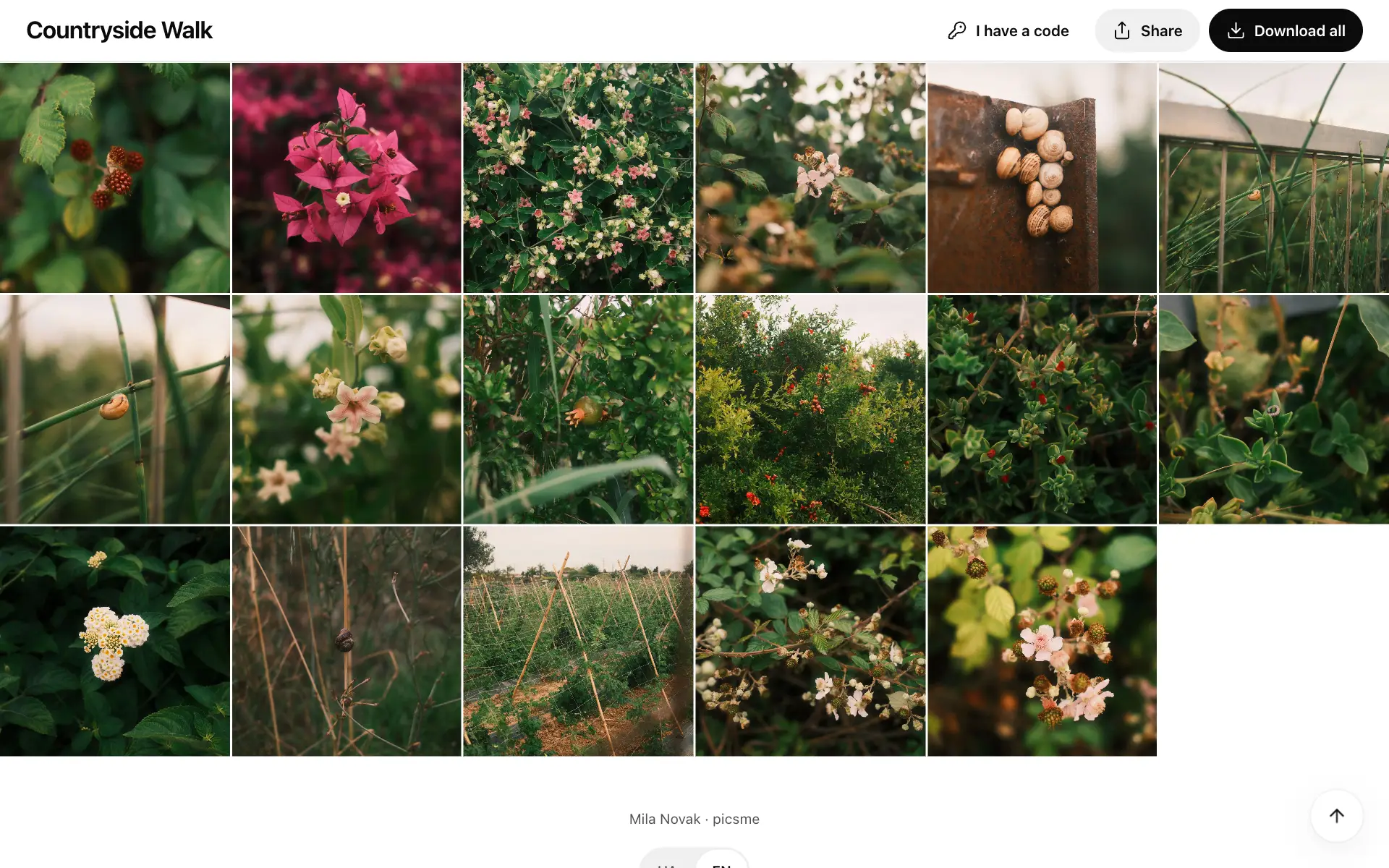
If the gallery opens without a password but your photographer gave you a code, tap I have a code (the key icon), enter it and tap Sign in with the code.
Looking around
Section titled “Looking around”- Sections. Tabs at the top: All and the sections your photographer made.
- One photo. Tap a photo to open it full screen; swipe (or use the arrow keys) to go to the next one.
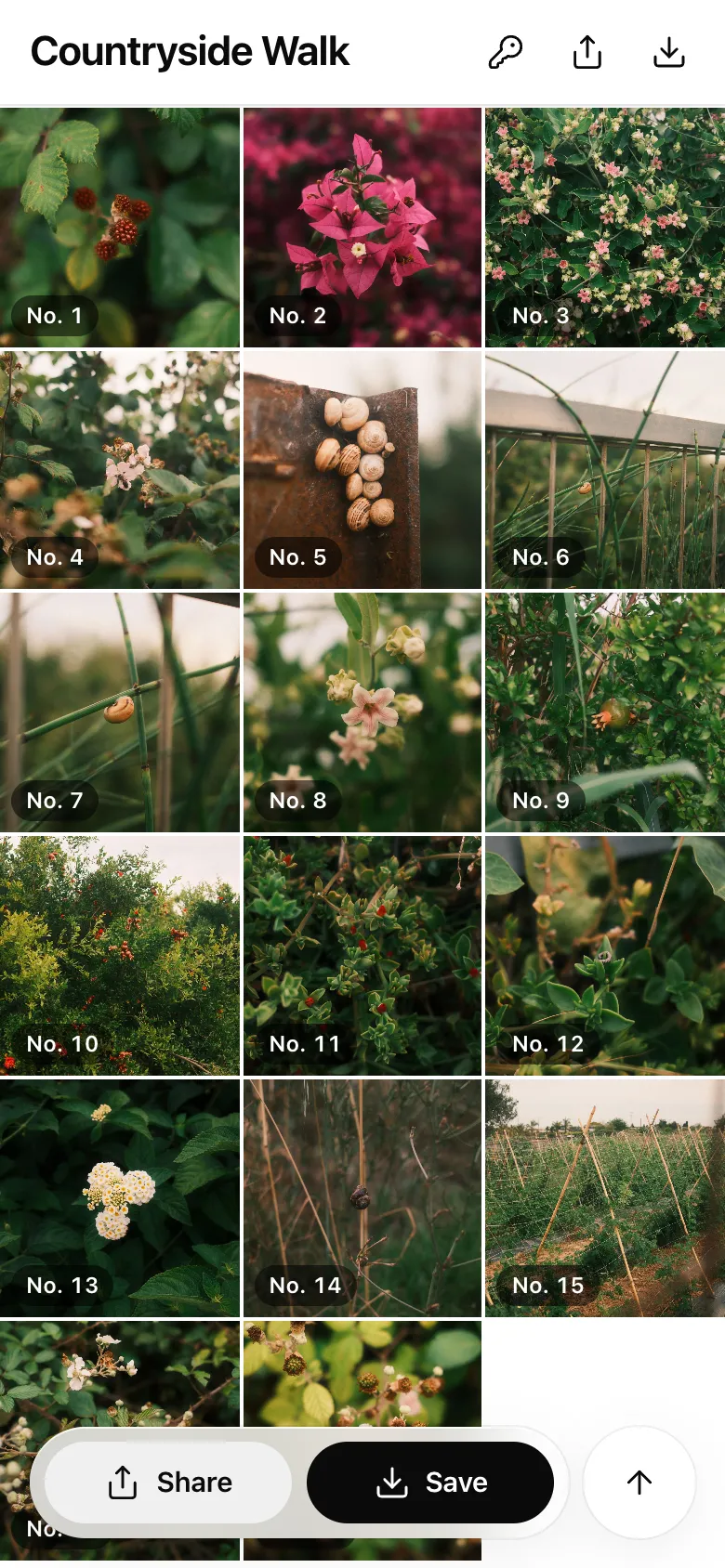
- Photo numbers. Photos usually have a number, like No. 12. Use it when you tell your photographer which photos you mean.
- Back to top — the round arrow button at the bottom right.
- Language. Switch UA / EN at the bottom of the page.
- Light or dark. The look of the gallery is chosen by your photographer.
Near the end of access you’ll see a strip at the top: Gallery available until… Save the photos you want before that date.
If it didn’t work
Section titled “If it didn’t work”- Wrong password or the gallery won’t open. See Gallery unavailable or wrong password.
- Can’t save photos. See Save photos to iPhone or Save photos on Android.