

Photo selection / proofing
In short: turn on Photo selection in a person’s access. They mark photos with hearts and tap Finish selection; you get a notification and the list in the Selection group.
Turn it on
Section titled “Turn it on”- Open the gallery, the Access group, and add or edit an access.
- Turn on Photo selection. In Limit, type how many photos the package has, or leave it empty.
- If you don’t want to give originals before the selection, turn on Reduced photos for selection: only 2048 px, no downloads.
- Tap Save and send the access with Share.
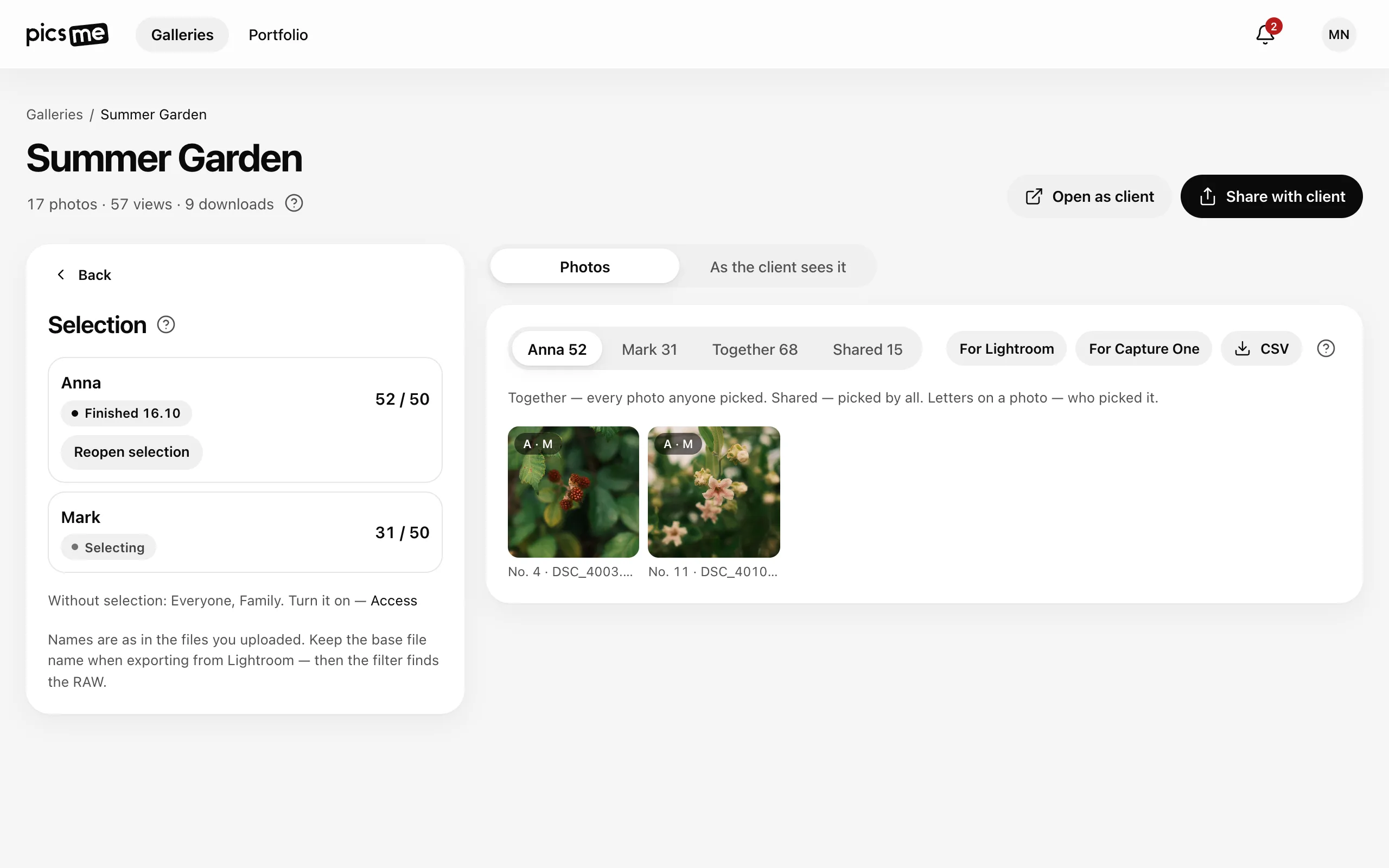
The limit is soft: the client sees “Pick up to 50 photos — a few more is fine”. They can go over — the counter turns grey and you see “52 / 50”.
While the client picks
Section titled “While the client picks”In the Selection group each access with selection shows Selecting and the count. In the preview pick whose selection to see; with two or more people there are also Together (picked by anyone) and Shared (picked by all). Letters on a photo show who picked it.
When the client finishes
Section titled “When the client finishes”The client taps Finish selection → Finish and send. Then:
- you get a notification in the bell and an email, and the home page shows it under Needs attention;
- the access shows Finished with the date, and the client’s hearts are locked.
To let them change it, tap Reopen selection. When they finish again, you get a new notification.
Next — export the selection to Lightroom, Capture One or CSV.
If it didn’t work
Section titled “If it didn’t work”- “No access may select”. Turn on Photo selection in an access.
- The client has no hearts. They opened the gallery with another password, or in an open gallery without their participant code.
- The access was revoked. Its selection stays in Selection, only you see it.
Related
Section titled “Related”- Choosing photos for your photographer — the client’s side
- Participant access